Introduction to WP Fastest Cache
Website speed is a critical factor for user experience and SEO rankings. In 2026, with Google's Core Web Vitals being more important than ever, having a fast-loading WordPress site is essential. WP Fastest Cache is one of the most popular and effective caching plugins available for WordPress, helping you significantly improve your site's performance without complex configuration.
Quick Tip: Installing a caching plugin like WP Fastest Cache can improve your WordPress site's loading speed by up to 80%, significantly boosting your SEO rankings and user experience.
What is WP Fastest Cache?
WP Fastest Cache is a free WordPress plugin that creates static HTML files from your dynamic WordPress pages. These static files are then served to users, which reduces the processing load on your server and decreases page load times. The plugin also offers various optimization features like minification, GZIP compression, and browser caching.
Why Use WP Fastest Cache?
- Improved Page Load Speed: Reduces the time it takes for your pages to load
- Better User Experience: Faster sites lead to lower bounce rates and higher engagement
- Higher SEO Rankings: Page speed is a ranking factor for search engines
- Reduced Server Load: Static HTML files require fewer server resources
- Mobile Optimization: Creates separate cache for mobile devices
- Easy to Use: Simple interface with minimal configuration required
How to Install WP Fastest Cache
Installing WP Fastest Cache is straightforward. Follow these steps:
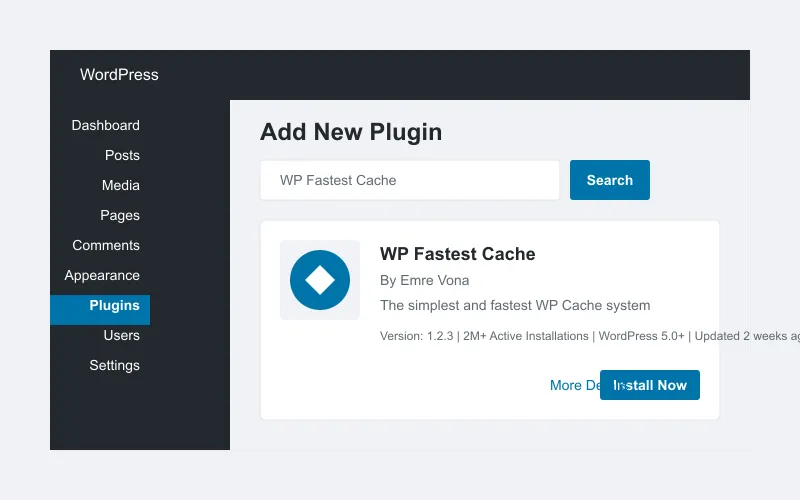
Method 1: Install from WordPress Dashboard
- Log in to your WordPress admin dashboard
- Navigate to Plugins > Add New
- In the search field, type "WP Fastest Cache"
- Click Install Now next to the WP Fastest Cache plugin
- After installation, click Activate
Method 2: Manual Installation
- Download the WP Fastest Cache plugin from the WordPress plugin repository
- Log in to your WordPress admin dashboard
- Navigate to Plugins > Add New
- Click Upload Plugin
- Choose the downloaded zip file and click Install Now
- After installation, click Activate
// WP Fastest Cache Key Features
- Static HTML caching
- Minification of HTML, CSS, and JavaScript
- GZIP compression
- Browser caching
- Mobile-specific caching
- Cache timeout management
- Cache preloading
- Database cleanup
Configuring WP Fastest Cache
After activating the plugin, you'll need to configure it for optimal performance. Here's a step-by-step guide to setting up WP Fastest Cache in 2026:
Basic Settings
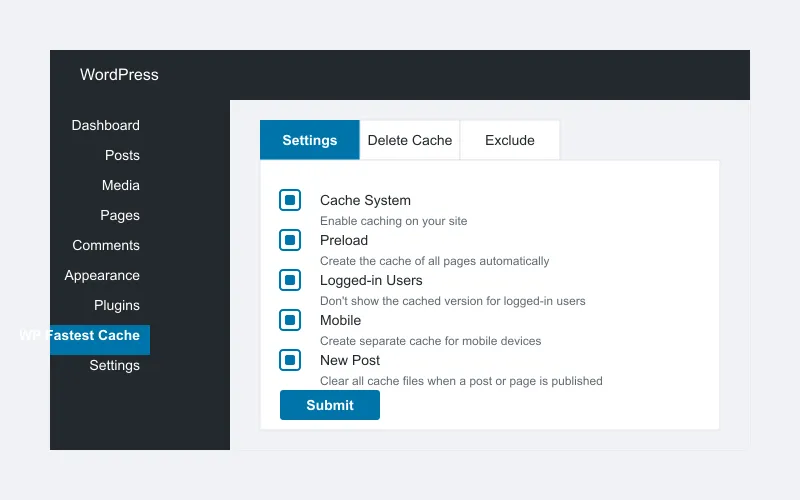
- In your WordPress dashboard, go to WP Fastest Cache
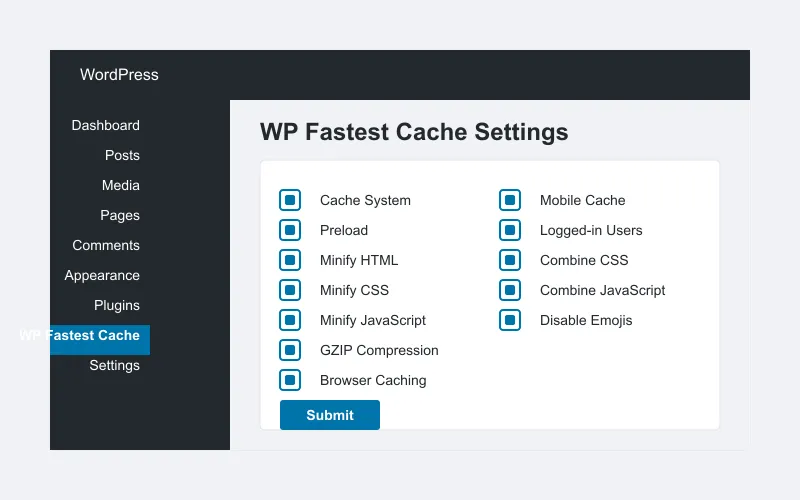
- On the Settings tab, enable the following options:
- Cache System: Enable the caching system
- Preload: Create cache for all pages automatically
- Logged-in Users: Don't show cached version for logged-in users
- Mobile: Create separate cache for mobile devices
- New Post: Clear all cache when a post or page is published
- Click Submit to save your settings
Advanced Settings
For even better performance, configure these additional settings:
- Enable Minify HTML to reduce HTML file size
- Enable Minify CSS to reduce CSS file size
- Enable Combine CSS to merge multiple CSS files
- Enable Minify JavaScript to reduce JavaScript file size
- Enable Combine JavaScript to merge multiple JavaScript files
- Enable GZIP Compression to compress files before sending to browser
- Enable Browser Caching to store static files in visitors' browsers
- Enable Disable Emojis to remove unnecessary emoji scripts
Pro Tip: If you're using a theme with a lot of JavaScript, be cautious with the "Combine JavaScript" option as it might cause conflicts. Test your site thoroughly after enabling this feature.
Premium Features
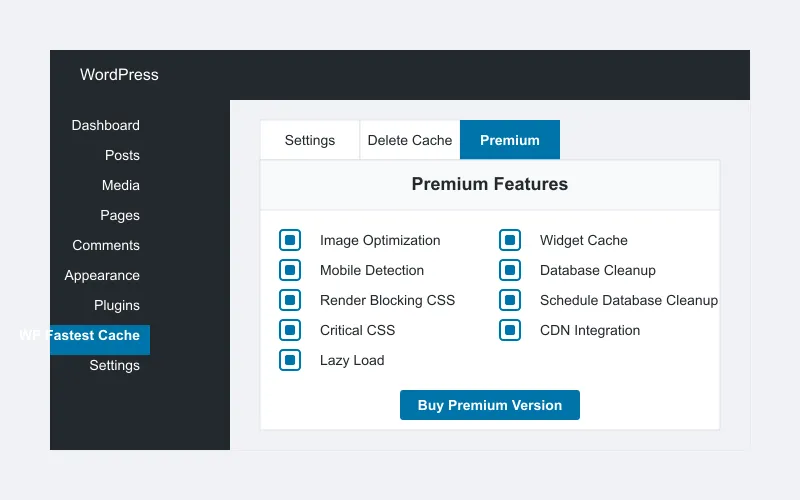
WP Fastest Cache also offers a premium version with additional features:
- Image Optimization: Automatically compress and optimize images
- Mobile Detection: More advanced mobile caching options
- Widget Cache: Cache WordPress widgets separately
- Render Blocking CSS: Optimize CSS delivery
- Critical CSS: Generate and inline critical CSS
- Database Cleanup: Advanced database optimization tools
- Lazy Load: Delay loading of images and iframes
- Schedule Database Cleanup: Automate database optimization
Clearing the Cache
There are several ways to clear the cache in WP Fastest Cache:
Manual Cache Clearing
- Go to WP Fastest Cache > Delete Cache in your WordPress dashboard
- Choose from the following options:
- Clear All Cache: Deletes all cached files
- Clear Only Minified CSS/JS: Keeps page cache but clears minified files
- Clear Cache of Homepage: Only clears the homepage cache
- Clear Cache of Specific Pages: Enter URLs to clear specific page caches
- Click the appropriate button to clear the selected cache
Automatic Cache Clearing
WP Fastest Cache can automatically clear cache in these situations:
- When a new post or page is published
- When a post or page is updated
- When a comment is approved or posted
- When a plugin is activated or deactivated
Troubleshooting Common Issues
If you encounter problems with WP Fastest Cache, try these solutions:
Site Appears Broken After Enabling Minification
- Go to WP Fastest Cache > Delete Cache
- Click Clear All Cache
- Go to WP Fastest Cache > Settings
- Disable Minify HTML, Minify CSS, and Minify JavaScript
- Save settings and test your site
- Re-enable each minification option one by one, testing after each change
Changes Not Appearing on Website
- Clear the plugin cache as described above
- Clear your browser cache (Ctrl+F5 or Cmd+Shift+R)
- If using a CDN, purge the CDN cache as well
Conflicts with Other Plugins
WP Fastest Cache may conflict with other caching or optimization plugins. If you're experiencing issues:
- Deactivate other caching plugins
- Temporarily deactivate other plugins one by one to identify conflicts
- Check with your hosting provider if they offer server-level caching that might conflict
Comparing WP Fastest Cache with Other Caching Plugins
How does WP Fastest Cache stack up against other popular caching plugins in 2026?
| Feature | WP Fastest Cache | W3 Total Cache | WP Super Cache |
|---|---|---|---|
| Ease of Use | ★★★★★ | ★★★☆☆ | ★★★★☆ |
| Performance | ★★★★☆ | ★★★★★ | ★★★★☆ |
| Features (Free) | ★★★★☆ | ★★★★★ | ★★★☆☆ |
| Server Impact | ★★★★★ | ★★★☆☆ | ★★★★☆ |
Frequently Asked Questions
Is WP Fastest Cache compatible with all WordPress themes?
WP Fastest Cache is compatible with most WordPress themes. However, some highly dynamic or complex themes might experience issues with certain features like JavaScript minification. Always test thoroughly after enabling advanced features.
Will WP Fastest Cache work with WooCommerce?
Yes, WP Fastest Cache works well with WooCommerce. The plugin automatically excludes cart, checkout, and my-account pages from caching to ensure proper functionality.
How often should I clear the cache?
With proper settings, WP Fastest Cache will automatically clear relevant cache when content is updated. Manual cache clearing is only necessary when making theme changes, updating plugins, or troubleshooting issues.
Is the premium version worth it?
The premium version offers valuable features like image optimization and lazy loading that can significantly improve performance, especially for image-heavy sites. For most small to medium websites, the premium features provide good value for the price.
Can I use WP Fastest Cache with a CDN?
Yes, WP Fastest Cache works well with Content Delivery Networks (CDNs). The premium version includes built-in CDN integration, but the free version can also be used alongside a CDN with manual configuration.
Conclusion
WP Fastest Cache is an excellent solution for improving your WordPress site's performance. Its combination of powerful features and user-friendly interface makes it suitable for both beginners and advanced users. By following this tutorial, you can properly configure WP Fastest Cache to significantly boost your site's speed, improve user experience, and potentially increase your search engine rankings.
Remember that site optimization is an ongoing process. Regularly test your site's performance using tools like website speed tests and make adjustments as needed to maintain optimal performance.