The dreaded 404 "Page Not Found" error is one of the most common issues encountered on the web. Whether you're a website owner, developer, or just a regular internet user, understanding how to troubleshoot and fix 404 errors is an essential skill. This comprehensive guide will walk you through everything you need to know about 404 errors, from what causes them to how to fix them effectively.
Quick Fix: If you're encountering a 404 error as a website visitor, try refreshing the page, checking the URL for typos, clearing your browser cache, or using a search engine to find the correct page. If you're a website owner, this guide will help you identify and fix the root causes of 404 errors on your site.
What is a 404 Error?
A 404 error is an HTTP status code that indicates the server could not find the requested resource. In simpler terms, it means the page or file you're trying to access doesn't exist at the specified URL. This can happen for various reasons, which we'll explore in detail.
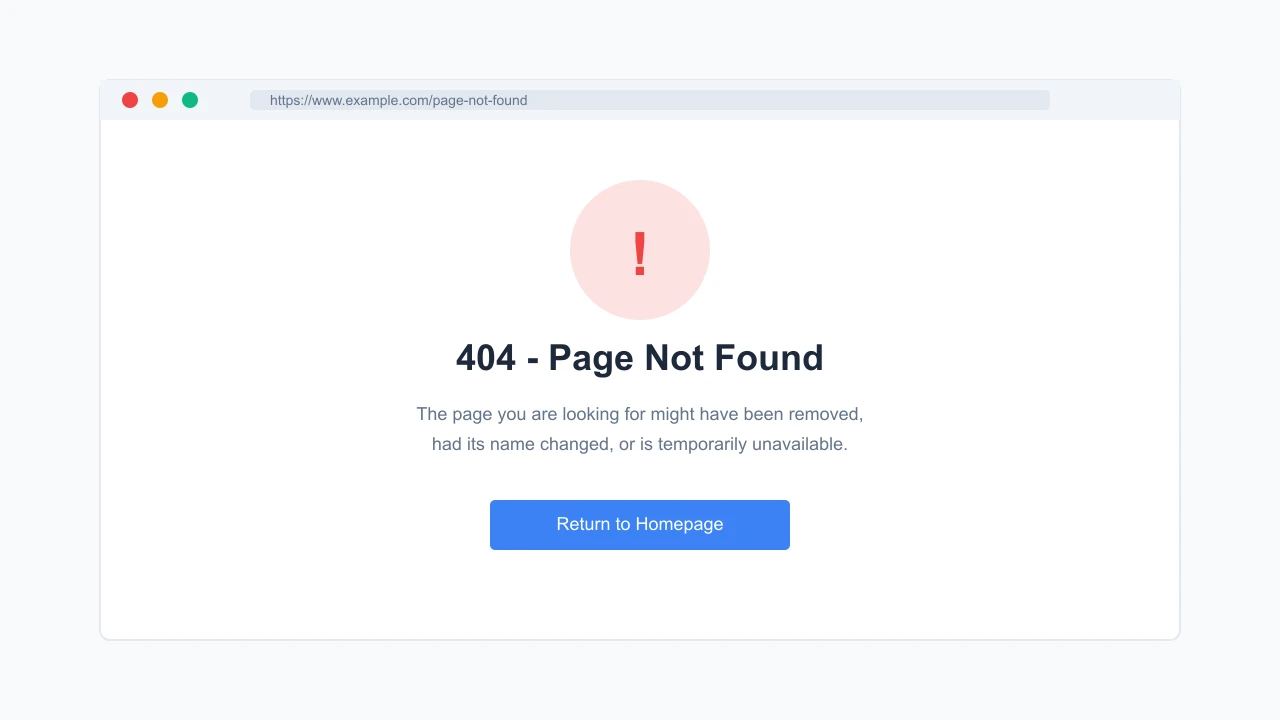
Common Causes of 404 Errors
Understanding what causes 404 errors is the first step in troubleshooting them. Here are the most common reasons you might encounter a 404 error:
- Mistyped URLs: The simplest cause is a typo in the URL, either entered manually or through a broken link
- Deleted or Moved Content: The page existed previously but has been deleted or moved without proper redirection
- Changed File Structure: Website reorganization that changed URL structures without implementing redirects
- Server Configuration Issues: Incorrect server settings or .htaccess file configurations
- Broken Links: Links pointing to pages that no longer exist or were never created
- DNS Issues: Problems with domain name resolution
- Caching Problems: Outdated cached versions of pages that no longer exist
- Access Restrictions: The page exists but the server is configured to return a 404 instead of a 403 Forbidden for security reasons
How to Troubleshoot 404 Errors as a Website Visitor
If you're encountering a 404 error while browsing the web, here are some steps you can take to resolve the issue:
1. Check the URL
The first and simplest step is to check the URL for typos. Even a small mistake like a misplaced character or incorrect capitalization can lead to a 404 error. Pay special attention to:
- Domain spelling (e.g., "exmaple.com" instead of "example.com")
- File extensions (.html, .php, etc.)
- Directory names and structure
- Special characters that might need to be URL-encoded
2. Try Navigating from the Homepage
If you can't access a specific page, try going to the website's homepage and navigating to the desired content from there. This can help you find the correct path to the content you're looking for.
3. Clear Your Browser Cache
Sometimes, your browser might be storing an outdated version of the website structure. Clearing your cache can help resolve this issue:
- Chrome: Settings > Privacy and security > Clear browsing data
- Firefox: Options > Privacy & Security > Cookies and Site Data > Clear Data
- Safari: Preferences > Advanced > Show Develop menu > Develop > Empty Caches
- Edge: Settings > Privacy, search, and services > Clear browsing data
4. Search for the Content
Use a search engine to find the content you're looking for. Search for the specific page title or keywords related to the content, along with the website's name.
5. Check the Website's Sitemap
Many websites have a sitemap that lists all available pages. Look for a "Sitemap" link, usually in the footer of the website, and use it to navigate to the content you need.
6. Contact the Website Owner
If all else fails, try contacting the website owner or administrator. Most websites have a contact page or form you can use to report the issue.
How to Fix 404 Errors as a Website Owner
If you're a website owner or administrator dealing with 404 errors on your site, follow these steps to identify and fix the issues:
1. Identify 404 Errors on Your Website
Before you can fix 404 errors, you need to find them. Here are several methods to identify 404 errors on your website:
Use Google Search Console
Google Search Console provides a comprehensive report of 404 errors that Google's crawlers have encountered on your site:
- Log in to Google Search Console
- Select your property
- Navigate to "Coverage" under "Index"
- Look for "Not found (404)" errors in the report
Check Server Logs
Your server logs contain detailed information about all requests, including those that resulted in 404 errors:
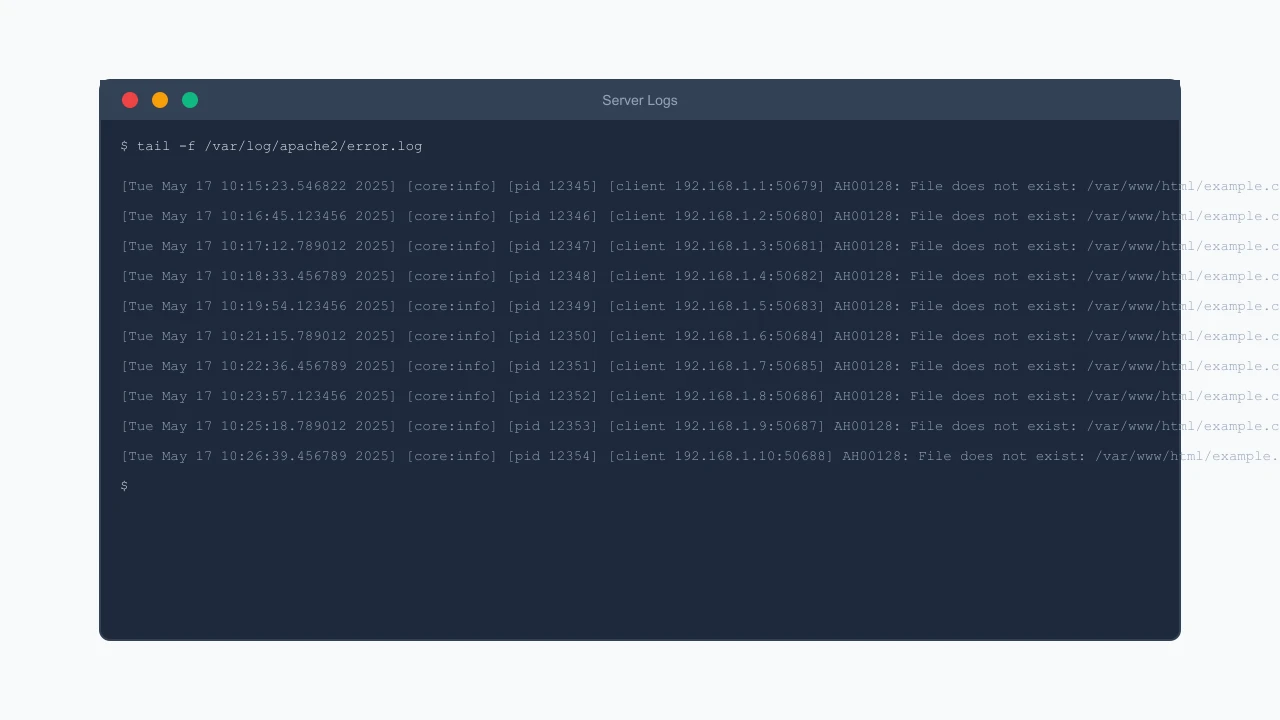
For Apache servers, check the access.log and error.log files. For Nginx, check the access.log and error.log files in the /var/log/nginx/ directory.
Use Website Crawlers
Website crawling tools can scan your entire site and report any broken links or 404 errors:
- Screaming Frog SEO Spider: A powerful desktop program that crawls websites and identifies various issues, including 404 errors
- Broken Link Checker: A free online tool that scans your website for broken links
- Ahrefs Site Audit: A comprehensive SEO tool that includes broken link checking
- SEMrush Site Audit: Another SEO tool with broken link detection capabilities
Set Up 404 Error Monitoring
Implement monitoring tools to get notified when 404 errors occur:
- Google Analytics: Set up custom reports to track 404 errors
- Log Analysis Tools: Use tools like Loggly or Papertrail to analyze server logs
- Uptime Monitoring Services: Services like Pingdom or UptimeRobot can alert you to certain types of errors
2. Implement 301 Redirects for Moved Content
If you've moved or renamed pages, implementing 301 redirects is the best way to prevent 404 errors and preserve SEO value:
Using .htaccess (Apache)
For Apache servers, you can use the .htaccess file to set up redirects:
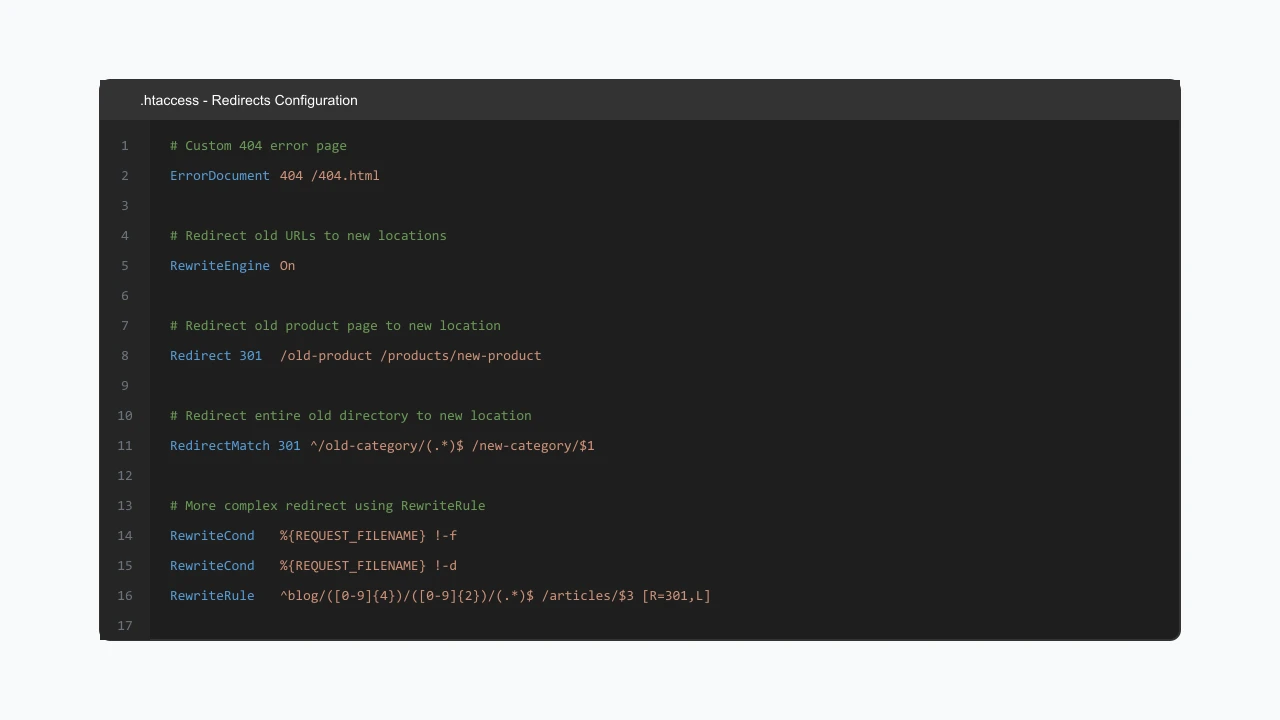
Here's a basic example of a 301 redirect in .htaccess:
Redirect 301 /old-page.html /new-page.html
For more complex redirects, you can use mod_rewrite:
RewriteEngine On
RewriteRule ^old-directory/(.*)$ /new-directory/$1 [R=301,L]
Using Nginx Configuration
For Nginx servers, add redirect directives to your server block:
server {
    listen 80;
    server_name example.com;

    location = /old-page.html {
        return 301 /new-page.html;
    }

    location /old-directory/ {
        rewrite ^/old-directory/(.*)$ /new-directory/$1 permanent;
    }
}
Using WordPress Plugins
If you're using WordPress, plugins like Redirection or Yoast SEO can help you manage redirects without editing server files.
3. Create a Custom 404 Error Page
A well-designed custom 404 page can significantly improve user experience when errors do occur:
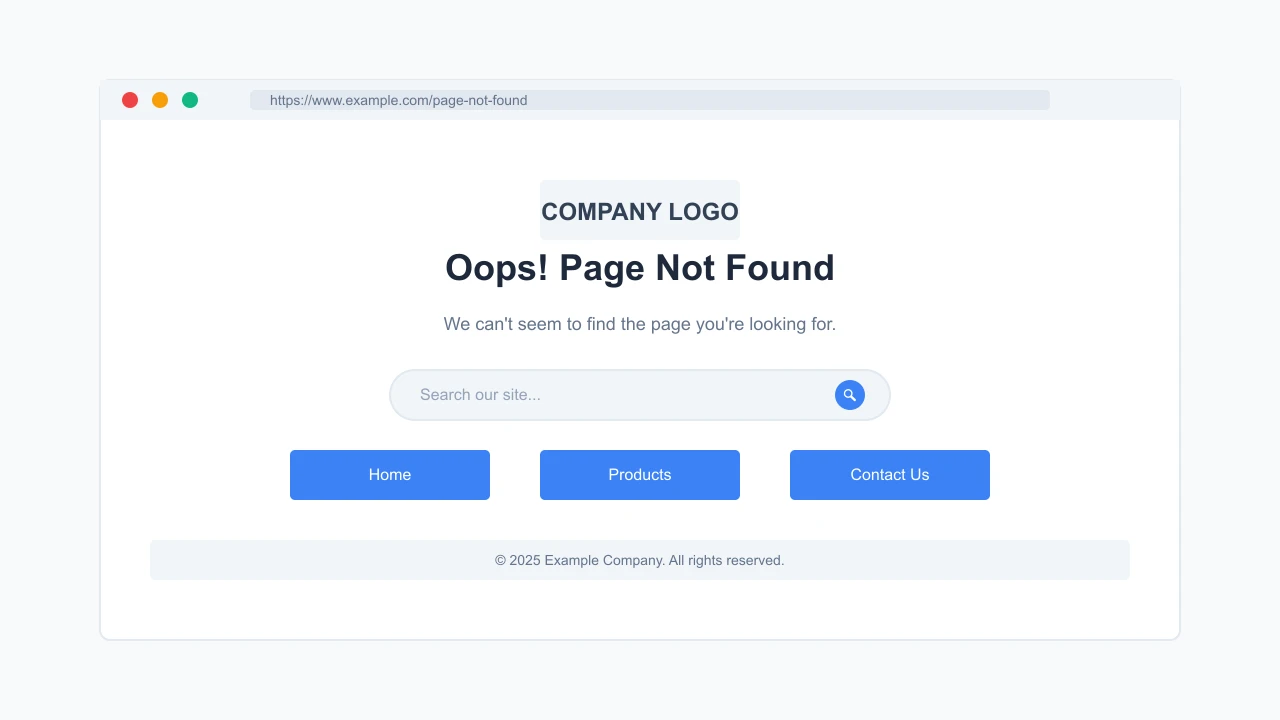
A good custom 404 page should include:
- Clear indication that the page wasn't found
- Your website's branding and navigation
- A search box to help users find what they're looking for
- Links to popular or important pages
- Contact information or a way to report the broken link
Creating a Custom 404 Page in HTML
Create a file named 404.html in your website's root directory with your custom error page content.
Configuring Your Server to Use the Custom 404 Page
For Apache, add this line to your .htaccess file:
ErrorDocument 404 /404.html
For Nginx, add this to your server block:
error_page 404 /404.html;
location = /404.html {
    internal;
}
4. Fix Broken Internal Links
Regularly audit your website for broken internal links and fix them:
- Use a website crawler to identify broken links
- Update the links to point to the correct URLs
- If the target content no longer exists, either create new content or remove the links
- Consider implementing a content maintenance schedule to regularly check for and fix broken links
5. Address Server Configuration Issues
Sometimes 404 errors are caused by server configuration problems:
- Check file and directory permissions
- Verify that your .htaccess file is properly formatted
- Ensure that the server is configured to handle the file types you're using
- Check for case sensitivity issues (especially on Linux servers)
Important Note on Case Sensitivity
Linux servers are case-sensitive, meaning that "Page.html" and "page.html" are treated as different files. Windows servers are case-insensitive. This difference can cause 404 errors when moving a site between different server types or when linking to files with inconsistent capitalization.
Preventing 404 Errors
Prevention is always better than cure. Here are some best practices to prevent 404 errors on your website:
1. Implement a Content Management Strategy
- Plan content changes and URL structures in advance
- Document all URL changes and implement redirects before removing content
- Use a consistent URL naming convention
- Consider the long-term implications of your URL structure
2. Use Permanent URLs
Implement a URL structure that won't need to change over time:
- Avoid including dates in URLs unless absolutely necessary
- Use descriptive, keyword-rich slugs that won't need to change
- Consider using a flat URL structure rather than deep hierarchies
3. Regular Website Audits
Schedule regular website audits to catch and fix issues before they affect users:
- Monthly or quarterly crawls to identify broken links
- Regular review of server logs for 404 errors
- Check Google Search Console for crawl errors
4. Implement Proper Redirects During Site Changes
Whenever you make changes to your website structure:
- Create a comprehensive redirect map before making changes
- Test redirects thoroughly before going live
- Monitor for 404 errors after implementing changes
SEO Impact of 404 Errors
404 errors can have significant implications for your website's search engine optimization:
Direct SEO Impact
- Loss of Link Equity: When pages with inbound links return 404 errors, the SEO value of those links is lost
- Crawl Budget Waste: Search engines allocate a limited "crawl budget" to each site; 404 errors waste this resource
- Negative User Signals: Users encountering 404 errors often leave the site, increasing bounce rates and decreasing time on site
Indirect SEO Impact
- Reduced User Trust: Frequent 404 errors can damage your site's credibility
- Decreased Conversion Rates: Users who encounter errors are less likely to convert
- Lower Return Visitor Rates: Poor user experience leads to fewer return visits
Advanced Troubleshooting Techniques
Using Chrome DevTools to Diagnose 404 Errors
Chrome DevTools can provide valuable insights into 404 errors:
- Open Chrome DevTools (F12 or Ctrl+Shift+I)
- Go to the Network tab
- Look for resources with a status code of 404
- Examine the Request URL to identify the exact path that's causing the error
Tracking 404 Errors with Google Analytics
Set up custom tracking for 404 errors in Google Analytics:
- Create a custom dimension for error pages
- Add tracking code to your 404 page
- Create a custom report to monitor 404 occurrences
Bulk Fixing 404 Errors
For websites with numerous 404 errors, consider these approaches:
- Use pattern matching in .htaccess to handle groups of similar URLs
- Implement a database-driven redirect system for dynamic content
- Use scripting to generate redirect rules from log analysis
Conclusion
404 errors are an inevitable part of managing a website, but with the right approach, you can minimize their occurrence and impact. By implementing proper redirects, creating user-friendly custom error pages, and regularly monitoring for broken links, you can ensure a smooth user experience and maintain your website's SEO value.
Remember that addressing 404 errors is not just a technical necessity but also an opportunity to improve user experience and demonstrate your commitment to website quality. A well-handled 404 error can turn a potentially frustrating user experience into a positive one.