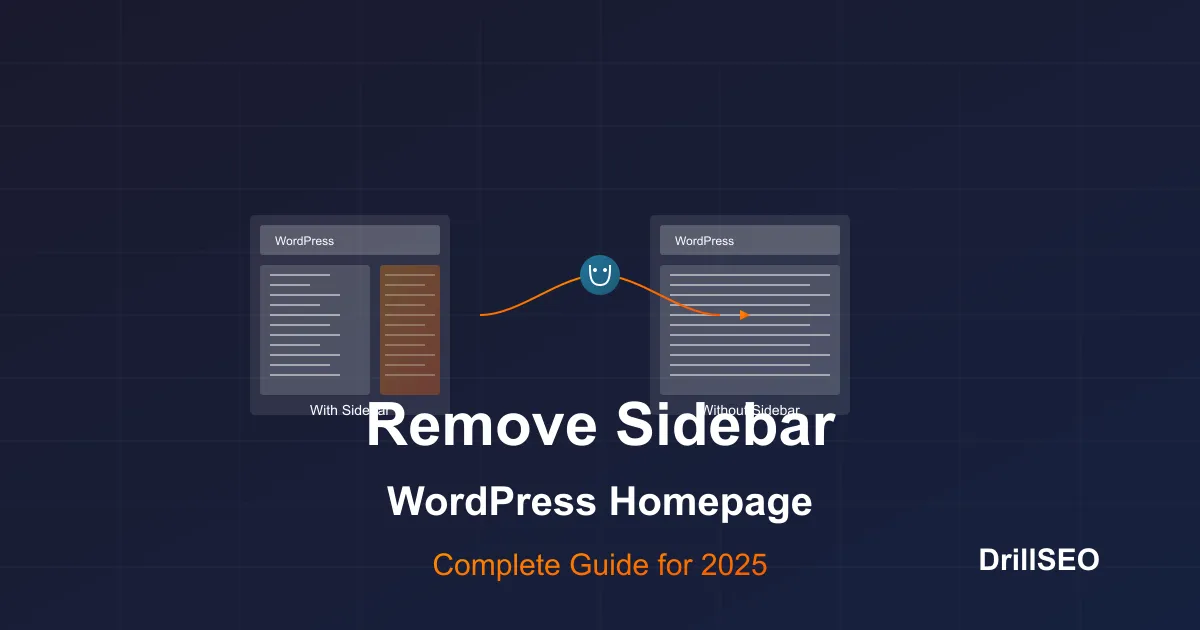
Why Remove the Sidebar from Your WordPress Homepage?
In modern web design, full-width layouts have become increasingly popular for homepages. Removing the sidebar can provide several benefits:
- Enhanced Focus: Without sidebar distractions, visitors can focus on your main content and calls-to-action
- Improved Mobile Experience: Full-width layouts typically respond better on mobile devices
- Modern Aesthetic: Clean, spacious designs align with current web design trends
- Better Content Hierarchy: Allows for more intentional content organization and visual flow
- Increased Creative Freedom: More space for hero sections, featured content, and multimedia elements
Important: Before making any changes to your WordPress theme, always create a backup of your site and consider using a child theme to prevent losing customizations during theme updates.
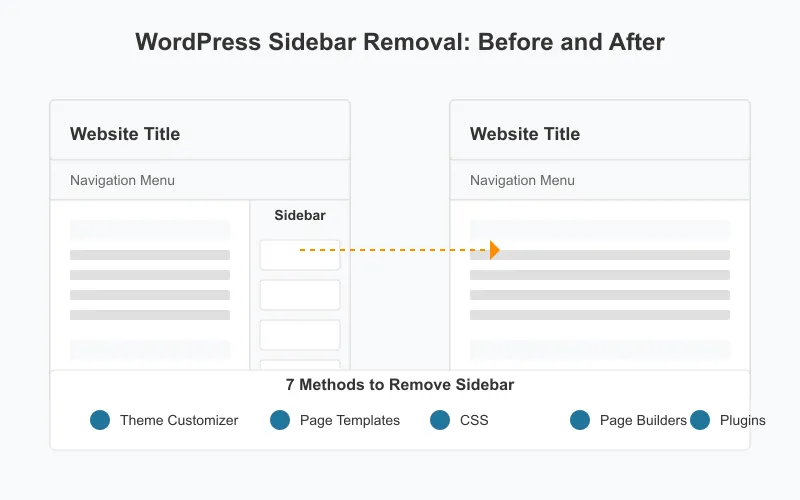
7 Methods to Remove Sidebar from WordPress Homepage
Depending on your technical comfort level and specific WordPress setup, you can choose from several methods to remove the sidebar from your homepage.
Method 1: Using Theme Customizer (No Coding Required)
Many modern WordPress themes include built-in options to control sidebar visibility on different pages.
- Log in to your WordPress admin dashboard
- Go to Appearance → Customize
- Look for options like "Layout Settings," "Homepage Settings," or "Sidebar Settings"
- Find the option to disable the sidebar on the homepage
- Save your changes
Theme-specific examples:
Astra Theme
- Go to Appearance → Customize
- Navigate to Layout → Sidebar
- Under "Homepage Sidebar," select "No Sidebar"
- Click "Publish" to save changes
GeneratePress Theme
- Go to Appearance → Customize
- Navigate to Layout → Sidebars
- Set "Front Page Sidebar Layout" to "No Sidebars"
- Click "Publish" to save changes
OceanWP Theme
- Go to Appearance → Customize
- Navigate to General Options → General Settings
- Find "Homepage Sidebar" and select "Full Width"
- Click "Publish" to save changes
Method 2: Using Page Templates
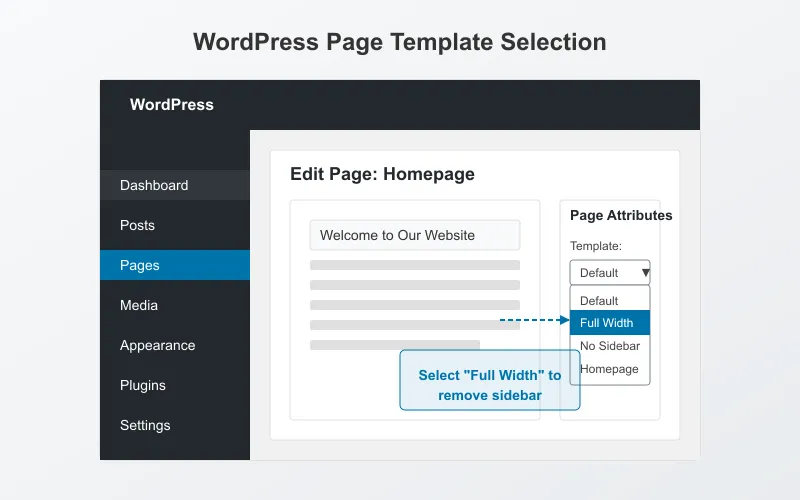
WordPress themes typically include different page templates, including full-width options without sidebars.
- Go to Pages in your WordPress dashboard
- Edit the page set as your homepage
- In the right sidebar, look for "Page Attributes" or "Template"
- Select a template like "Full Width," "No Sidebar," or "Homepage"
- Update the page to save changes
Method 3: Using CSS (Intermediate)
If your theme doesn't offer built-in options to remove the sidebar, you can hide it using CSS.
- Go to Appearance → Customize
- Click on Additional CSS
- Add one of the following CSS snippets:
Option 1: Hide sidebar only on the homepage:
.home .sidebar,
.home #sidebar,
.home .widget-area {
    display: none !important;
}

.home .content-area,
.home #primary,
.home main {
    width: 100% !important;
    max-width: 100% !important;
    margin-left: 0 !important;
    margin-right: 0 !important;
    float: none !important;
}
Option 2: If the above code doesn't work, you may need to inspect your theme's specific CSS classes:
- Visit your homepage
- Right-click on the sidebar and select "Inspect" or "Inspect Element"
- Identify the CSS class or ID used for the sidebar
- Create a custom CSS rule to hide that specific element
Note: Using CSS only hides the sidebar visually but doesn't remove it from the DOM. For better performance, consider using one of the other methods that actually removes the sidebar code.
Method 4: Creating a Custom Page Template (Advanced)
For more control, you can create a custom full-width page template:
- Create a child theme if you haven't already
- In your child theme folder, create a new file named
template-fullwidth.php - Add the following code to the file:
<?php
/**
 * Template Name: Full Width No Sidebar
 * Description: A full-width template with no sidebar
 */

get_header();
?>

<div id="primary" class="content-area full-width">
    <main id="main" class="site-main" role="main">
        <?php
        while ( have_posts() ) :
            the_post();
            get_template_part( 'template-parts/content', 'page' );

            // If comments are open or we have at least one comment, load up the comment template.
            if ( comments_open() || get_comments_number() ) :
                comments_template();
            endif;
        endwhile; // End of the loop.
        ?>
    </main><!-- #main -->
</div><!-- #primary -->

<?php
get_footer();
- Add the following CSS to your child theme's
style.cssfile:
.full-width {
    width: 100% !important;
    max-width: 100% !important;
    margin-left: 0 !important;
    margin-right: 0 !important;
    float: none !important;
}
- Go to Pages in your WordPress dashboard
- Edit your homepage
- In the Page Attributes section, select your new "Full Width No Sidebar" template
- Update the page
Method 5: Using a Page Builder Plugin
Page builder plugins like Elementor, Beaver Builder, or Divi make it easy to create full-width layouts:
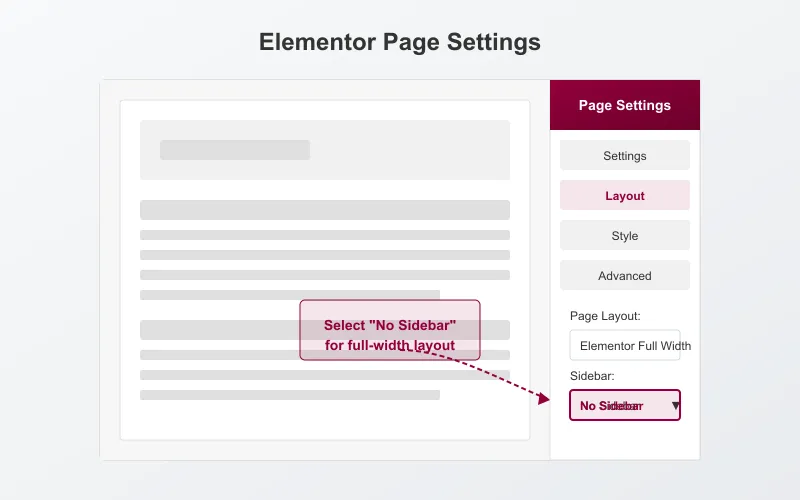
Elementor
- Edit your homepage with Elementor
- Click the gear icon (Page Settings) in the bottom left
- Go to "Layout" settings
- Set "Page Layout" to "Elementor Full Width"
- Click "Update" to save changes
Beaver Builder
- Edit your homepage with Beaver Builder
- Click "Tools" in the top bar
- Select "Page Settings"
- Choose "Full Width" under Layout settings
- Save and publish your changes
Divi Builder
- Edit your homepage with Divi Builder
- Click the gear icon (Page Settings)
- Under "Divi Page Settings," find "Sidebar"
- Select "No Sidebar"
- Save changes
Method 6: Editing Theme Files (Advanced)
For developers comfortable with PHP, you can modify your theme's template files:
Warning: Always use a child theme when editing theme files to prevent losing your changes during theme updates.
- Identify which template file controls your homepage (often
front-page.php,home.php, orindex.php) - Create a copy of this file in your child theme
- Edit the file to remove the sidebar code, which typically looks like:
<?php get_sidebar(); ?>
- Modify the content area width to 100%
- Save the file and check your homepage
Method 7: Using a Plugin
Several plugins can help you control sidebar visibility without coding:
Sidebar Manager Plugin
- Install and activate the Sidebar Manager plugin
- Go to Appearance → Sidebar Manager
- Select "Homepage" from the page list
- Choose "No Sidebar" layout
- Save changes
Content Aware Sidebars
- Install and activate Content Aware Sidebars
- Go to Sidebars → Add New
- Set conditions to target the homepage
- Set action to "Replace" and select your theme's sidebar
- Leave the content empty to effectively remove the sidebar
- Save and publish
Troubleshooting Common Issues
If you encounter problems while trying to remove the sidebar, try these solutions:
Content Not Expanding to Full Width
If your content area doesn't expand after removing the sidebar, add this CSS:
.home .content-area,
.home #primary,
.home main {
    width: 100% !important;
    max-width: 100% !important;
    margin-left: auto !important;
    margin-right: auto !important;
    float: none !important;
}
Sidebar Still Showing After Changes
- Clear your browser cache and website cache
- Try a different browser to rule out caching issues
- Temporarily disable plugins that might be affecting layout
- Check if your theme has a "reset layout" option
Layout Breaks After Removing Sidebar
If removing the sidebar causes layout issues:
- Check for responsive design issues
- Inspect element to identify conflicting CSS
- Add padding or margin to improve spacing
- Consider using a page builder for more control
Best Practices for Full-Width Homepage Design
After removing the sidebar, optimize your homepage with these design principles:
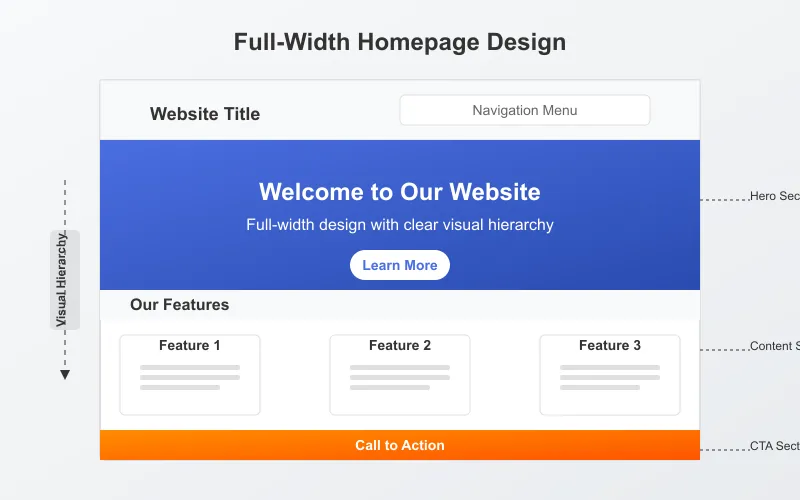
Maintain Visual Hierarchy
- Use clear sections with proper spacing
- Implement a strong hero section at the top
- Guide visitors with visual cues and directional elements
- Maintain consistent heading sizes and styles
Optimize Content Width
- Avoid extremely wide text blocks (aim for 60-80 characters per line)
- Use container widths for text content (e.g., max-width: 1200px)
- Allow full-width backgrounds with contained content
Add Strategic CTAs
- Place important calls-to-action in prominent positions
- Consider adding a sticky header or footer with key actions
- Use contrasting colors for buttons and interactive elements
Conclusion
Removing the sidebar from your WordPress homepage can create a more modern, focused design that improves user experience and aligns with current web design trends. Whether you choose a no-code approach through your theme's customizer, use CSS, create a custom template, or leverage plugins, the methods in this guide provide options for users of all technical levels.
Remember to test your changes on multiple devices to ensure your full-width layout looks great on desktops, tablets, and mobile phones. With the sidebar removed, take advantage of the additional space to create a compelling, conversion-focused homepage that guides visitors to your most important content and actions.
Frequently Asked Questions
Will removing the sidebar affect my SEO?
Removing the sidebar itself won't negatively impact SEO. In fact, a cleaner layout may improve user experience metrics like time on page and bounce rate, which can indirectly benefit SEO. Just ensure that any important navigational elements or calls-to-action from the sidebar are repositioned elsewhere on your page.
Can I remove the sidebar on specific pages only?
Yes, most of the methods described can be applied to specific pages rather than site-wide. When using CSS, target specific page IDs or classes; when using page templates, apply them only to the desired pages; and when using plugins, configure them to affect only certain pages.
Will my theme's sidebar settings be lost after a theme update?
If you're using the theme's built-in customizer options, these settings should persist through theme updates. However, if you've directly edited theme files, these changes will be lost unless you're using a child theme. This is why we strongly recommend using a child theme for any direct code modifications.
How can I add back elements that were in my sidebar?
Consider relocating important sidebar elements to other areas of your site, such as:
- Adding widgets to your footer area
- Creating a sticky header with key navigation or search functions
- Adding a call-to-action section within your main content
- Using a floating or slide-in panel for subscription forms or contact info
Is it better to hide the sidebar with CSS or remove it completely?
From a performance perspective, it's better to completely remove the sidebar code rather than just hiding it with CSS. Removing the code ensures the sidebar elements aren't loaded at all, which can improve page load times. However, hiding with CSS is a quick solution if you're not comfortable editing theme files.