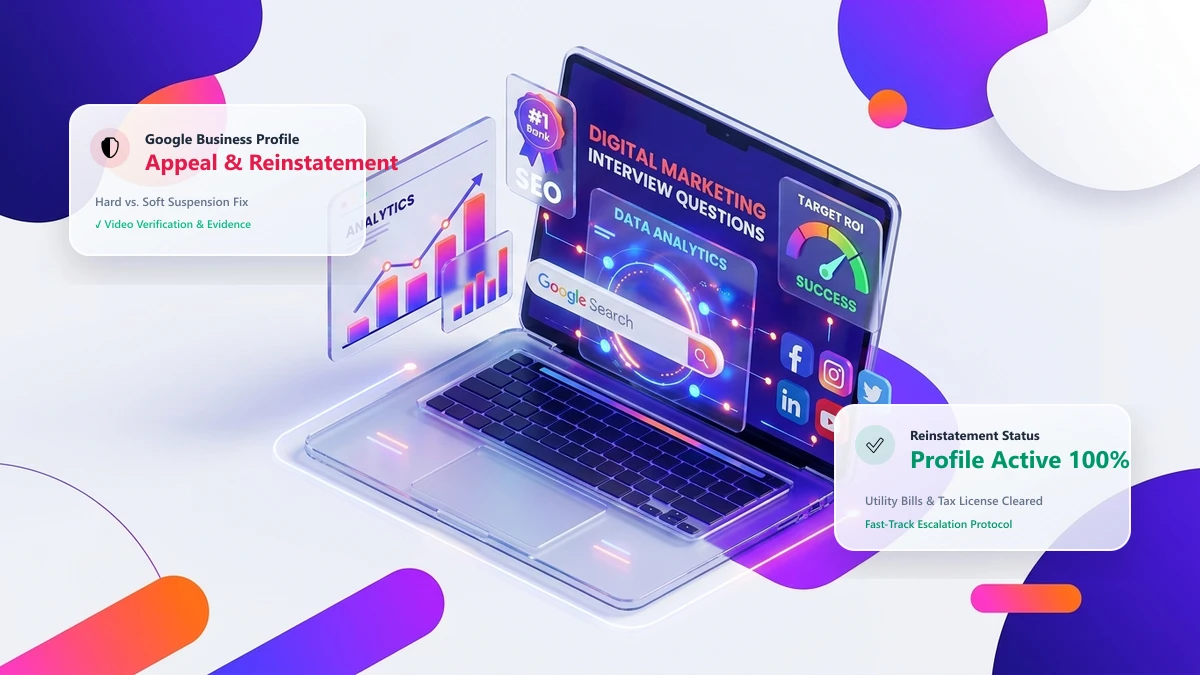
Few events in local business marketing are as catastrophic as waking up to an email from Google stating: “Your Business Profile has been suspended due to policy violation: Deceptive content and behavior”. Overnight, your phone calls stop, your Google Maps 3-Pack rankings vanish, and incoming customer inquiries drop to zero. In 2026, Google has automated its algorithmic fraud detection systems, aggressively suspending hundreds of thousands of legitimate local businesses every month.
Do not panic, and do not immediately click the appeal button without preparing your evidence. You only have a 60-minute window to submit evidence once you launch the appeal workflow. In this definitive guide, you will learn the exact difference between hard and soft suspensions, the primary triggers that cause suspensions, the required legal evidence packet, and the step-by-step blueprint to get your Google Business Profile reinstated.
1. Hard vs. Soft Suspensions: Diagnosing Your Account Status
When Google flags your listing, it falls into one of two distinct categories:
| Suspension Type | Public Visibility | Dashboard Status | Severity & Recovery Path |
|---|---|---|---|
| Soft Suspension | The business profile remains visible on Google Maps and search results, but you lose managerial control. You cannot edit business hours, respond to reviews, or publish updates. | Displays as “Suspended” in red, but your public listing is still active. | Moderate severity. Typically caused by suspicious manager account activity or unverified ownership changes. Reclaimed through identity re-verification. |
| Hard Suspension (Disabled) | The listing is completely wiped from Google Maps and web search results. Clicks on past direct map links return 404 or “This listing is no longer available”. | Displays as “Disabled” or “Suspended for deceptive content”. All rankings and review stars disappear from the SERP. | Critical emergency. Requires a formal appeal with official legal government documents, utility bills, and lease agreements. |
2. The Top 7 Triggers That Cause Google to Suspend Profiles
Google rarely provides detailed explanations for suspensions. Based on thousands of analyzed reinstatement cases, these are the 7 most common culprits:
- Keyword Stuffing in the Business Name: Adding descriptive keywords, city names, or service terms that do not exist on your registered legal business certificate (e.g., changing “Smith Legal” to “Smith Legal - Best Personal Injury Lawyer Chicago Car Accident Attorney”).
- Using Virtual Offices, UPS Stores, or Co-Working Spaces: Listing an address at a mail drop facility, UPS Store box, or unstaffed Regus/WeWork virtual office without a physical, dedicated leased office space and permanent exterior signage.
- Service Area Business (SAB) Address Violations: Plumbers, roofers, mobile locksmiths, and contractors who operate out of residential homes but fail to hide their address. If customers do not physically visit your storefront during posted hours, your residential address must be toggled off.
- Rapid Edits to Sensitive Fields: Making multiple sudden edits in a single session (e.g., changing business name, phone number, category, and physical address all at once). This triggers Google’s automated anti-hijacking tripwire.
- Mismatched NAP (Name, Address, Phone) Across the Web: Discrepancies between your GBP listing and state business registration records, Secretary of State filings, utility bills, and website footer information.
- Forwarding or Tracking Phone Numbers as Primary: Using a VoIP or call tracking number (CallRail) as the primary line without listing the local landline in the secondary number field.
- Multiple Businesses at the Same Physical Address: Creating overlapping listings for the same trade at an identical suite number without separate legal business entity documents and separate dedicated phone lines.
3. The Pre-Appeal Audit: Fixing Profile Violations First
CRITICAL WARNING: Submitting an appeal while your profile still violates Google’s guidelines guarantees an immediate, permanent rejection. Once rejected, second appeals are 10x harder to overturn.
Before touching the appeal tool, audit and correct your profile inside the Google Business Profile dashboard:
- Match Business Name to Legal Records: Strip all promotional slogans, location tags, and keywords. Your GBP Name must match your registered LLC/Corporation certificate character-for-character.
- Verify Business Category: Ensure your primary category accurately reflects your core trade (e.g., “HVAC contractor” rather than a generic or deceptive category).
- Review Address vs. Service Area: If you are a home-based service contractor, go to Location > Clear Address > Define Service Area radius.
- Match Website Footer: Ensure your website’s contact page displays the identical business name, physical address, and local telephone number matching your GBP profile.
4. Preparing Your Legal Proof Packet (Required Documents)
Google human reviewers require unshakeable proof that your business is legitimate, operational, and located at the claimed address. Assemble a single, consolidated PDF proof packet containing:
| Document Type | Accepted Examples | Key Requirements |
|---|---|---|
| 1. Official Legal Registration | Articles of Organization, State LLC Certificate, Business License, Sales Tax Registration. | Must show the exact legal business name and physical registered address. |
| 2. Physical Utility Bill | Electric, gas, water, or commercial internet bill (issued within the last 60 days). | Cell phone bills are strictly rejected. Address on utility bill must match the GBP listing exactly. |
| 3. Lease Agreement / Deed | Fully executed commercial commercial lease agreement signed by tenant and landlord. | Must detail the suite number and operational term dates. |
| 4. Photographic Proof | High-resolution exterior building signage, office door signage, company branded vehicles, tools/inventory. | Photos must show permanent, non-temporary signage (vinyl stickers or temporary paper banners are rejected). |
5. The Official GBP Appeal Process (Step-by-Step)
Google manages suspensions through the standardized GBP Appeal Tool (accessible at support.google.com/business/workflow/13565898):
- Log into the Owner Account: Ensure you are logged into the exact Google account designated as the Primary Owner of the suspended profile.
- Confirm Business Selection: Select the suspended listing and click “Request Appeal”.
- Upload Evidence Packet within 60 Minutes: Google grants exactly 60 minutes from the moment you initiate the appeal to upload your proof documents. Upload your consolidated PDF proof packet.
- Write a Professional, Factual Statement: In the text justification box, remain objective and professional. Do not complain or lecture about lost revenue. Provide a concise summary:
“Our business, [Legal Name], is a legitimate, state-licensed [Category] operating at [Physical Address]. We recently corrected a minor formatting error on our profile to ensure 100% compliance with Google guidelines. Attached please find our official State LLC Certificate, our recent electric utility bill, our commercial lease agreement, and photographs of our permanent exterior signage. We respectfully request full reinstatement of our profile.”
- Monitor Case ID: You will receive an automated confirmation email with a Case ID (e.g.,
[0-1234567890]). Reinstatement decisions typically take 3 to 5 business days.
Google frequently mandates a Live Video Verification before clearing an appeal. A video verification failure results in an immediate denial. Follow this filming checklist:
- Plan a Continuous One-Take Video: Never cut, edit, pause, or switch camera views during recording. The video must be one seamless continuous shot lasting 1 to 2 minutes.
- Capture the Street Sign & Exterior: Begin outside on the street. Film the street name sign, the exterior building numbers, and surrounding neighboring storefronts.
- Walk into the Building: Film yourself unlocking the front entrance door with your key (proving authorized access).
- Show Permanent Signage: Film the permanent directory board in the lobby and your company name printed on the office door.
- Show Business Operations: Film your work desks, computer monitors displaying your website/software admin, business cards on desks, printed invoices, and specialized trade equipment or product inventory.
7. What to Do If Your Appeal Is Denied (Escalation Pathways)
If your initial appeal returns with “Not Approved: Your profile does not comply with our guidelines”, standard customer support channels will shut down. Here is the advanced escalation playbook:
- Submit a Secondary “Denied Appeal” Form: Google provides a secondary reconsideration form specifically for denied appeals. Upload additional proof (e.g., photos of your business tax return, liability insurance policy, vehicle registration).
- Escalate to Google Product Experts (GBP Help Community): Navigate to the official Google Business Profile Community Forum. Create a detailed public post titled “Reinstatement Assistance for Legitimate Business - Case ID [Your Case ID]”. Gold and Diamond Product Experts have direct internal escalation channels to Google’s internal trust and safety team and can manually review cases that automated bots rejected.
- Never Create a New Replacement Profile: Creating a second profile for the same business while the first is suspended is categorized as duplicate spam and will trigger an instant, permanent hard ban on your domain and phone number.
8. Frequently Asked Questions (FAQs)
Q: Will my customer reviews be restored after reinstatement?
A: Yes. In 95% of cases, all historical customer reviews and star ratings are fully restored within 24 to 72 hours of your profile returning to active status. If reviews fail to repopulate after 7 days, reply to your original support case email with the Case ID requesting a review sync.
Q: How long does Google take to review an appeal in 2026?
A: Standard initial appeals take between 3 and 7 business days. Secondary escalations through Product Experts may take 2 to 3 weeks depending on queue backlogs.
Q: Can I change my business address while an appeal is pending?
A: Absolutely not. Modifying any profile details while an appeal is actively under review will immediately invalidate the verification workflow and reset the evaluation cycle.