Why You Need a Bulk URL Opener in 2026
In today's fast-paced digital environment, efficiency is key. Whether you're a digital marketer managing multiple campaigns, a social media manager handling various platforms, a researcher gathering information from multiple sources, or simply someone who regularly opens the same set of websites, a bulk URL opener can save you valuable time and streamline your workflow.
Bulk URL openers allow you to open multiple web pages simultaneously with a single click, eliminating the tedious process of opening tabs one by one. In 2026, with increasingly complex digital workflows, these tools have become essential productivity enhancers for professionals across industries.
Time-Saving Tip: Most modern bulk URL openers now support grouping links by category, allowing you to open specific sets of websites based on different tasks or projects.
Top 7 Bulk URL Opener Chrome Extensions in 2026
We've tested dozens of bulk URL opener extensions for Chrome and selected the best options based on functionality, user experience, customization options, and reliability.
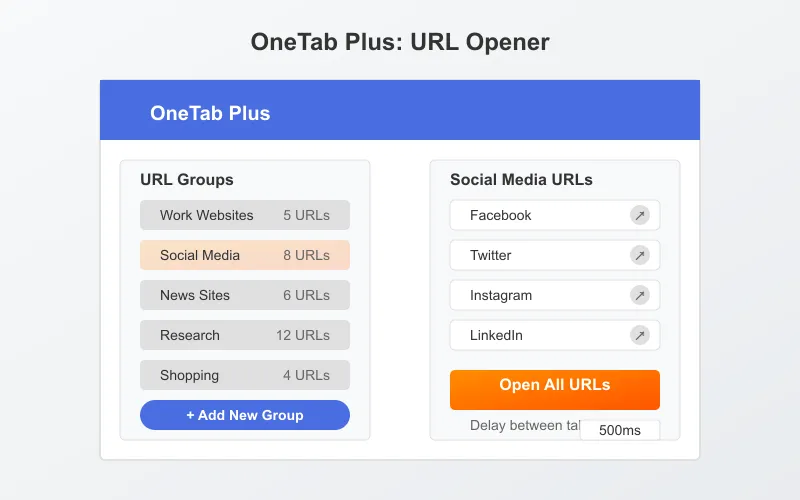
1. OneTab Plus: URL Opener
Key Features:
- Open multiple URLs with customizable delay between each tab
- Create and save groups of URLs for different purposes
- Import/export URL lists in various formats (CSV, TXT, JSON)
- Keyboard shortcuts for quick access
- Tab management features to organize opened tabs
- Dark mode support
Pros:
- Intuitive interface with drag-and-drop functionality
- Excellent tab management capabilities
- Regular updates with new features
- Low memory footprint
Cons:
- Some advanced features require a premium subscription
- Occasional sync issues between devices
Best for: Power users who need comprehensive URL and tab management.
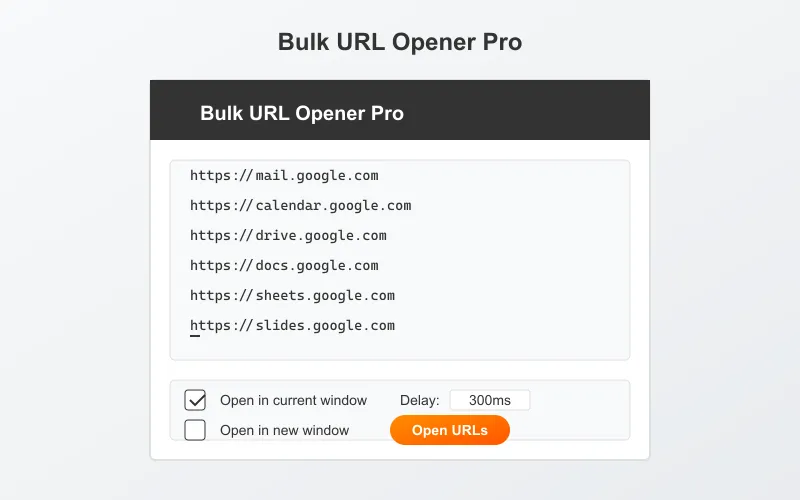
2. Bulk URL Opener Pro
Key Features:
- Simple text area for pasting multiple URLs
- Adjustable delay between opening tabs
- URL validation to prevent errors
- Support for opening URLs in new windows or incognito mode
- History of recently opened URL sets
- Cloud sync across devices
Pros:
- Extremely simple to use
- Lightweight with minimal permissions required
- Free with no premium tier
Cons:
- Limited organizational features compared to alternatives
- No advanced filtering options
Best for: Users who need a straightforward, no-frills bulk URL opener.
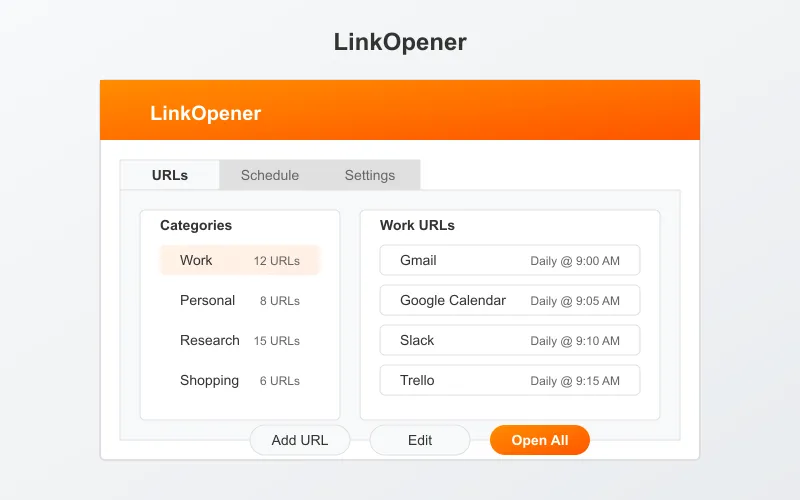
3. LinkOpener
Key Features:
- Categorize URLs into folders and subfolders
- Schedule automatic URL opening at specific times
- Extract links from web pages automatically
- Advanced filtering options (domain, keywords, etc.)
- Customizable opening patterns (sequential, random, etc.)
- Integration with productivity tools
Pros:
- Most comprehensive organizational features
- Unique scheduling capabilities
- Excellent for complex workflows
Cons:
- Steeper learning curve than simpler alternatives
- Premium version required for advanced features
- Higher resource usage
Best for: Digital marketers and professionals who need advanced organization and automation.
4. Tab Opener
Key Features:
- Clean, minimalist interface
- Quick access from browser toolbar
- Support for URL patterns and variables
- Basic grouping functionality
- Import from bookmarks
Pros:
- Extremely lightweight
- Fast performance
- No account required
Cons:
- Limited advanced features
- No cloud sync
Best for: Users who prioritize simplicity and performance.
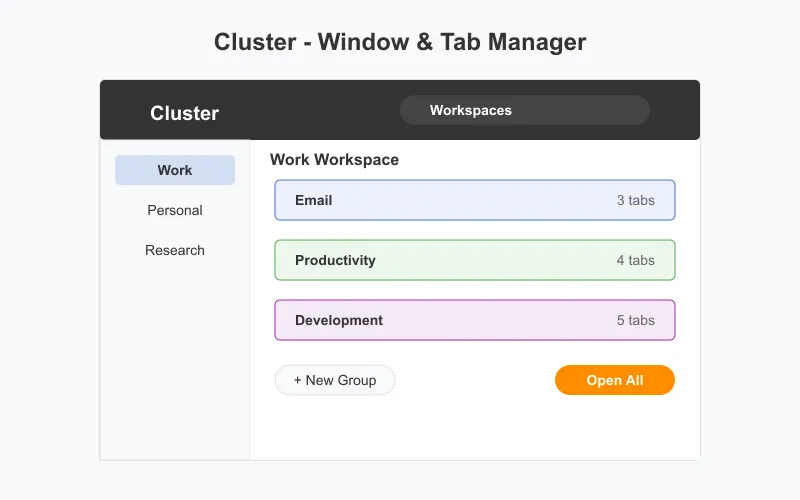
5. Cluster - Window & Tab Manager
Key Features:
- Create workspaces with multiple tab groups
- Save and restore browsing sessions
- Organize tabs visually with drag-and-drop
- Automatic tab grouping by domain
- Cross-device synchronization
- Advanced search across all tabs and workspaces
Pros:
- Excellent visual organization
- Perfect for managing multiple projects
- Reduces browser clutter
Cons:
- More focused on tab management than bulk opening
- Premium subscription for advanced features
- Can be overwhelming for casual users
Best for: Professionals who manage multiple projects and need comprehensive tab organization.
6. Open Multiple URLs
Key Features:
- Simple text area interface
- Basic URL validation
- Open in current window or new window
- Remembers recently used URL sets
Pros:
- Extremely easy to use
- No account required
- Completely free
Cons:
- Very limited features
- No organization options
- No customization
Best for: Casual users who occasionally need to open multiple URLs.
7. SessionBox
Key Features:
- Open URL sets in isolated browser sessions
- Multiple accounts on the same website simultaneously
- Session management with labels and colors
- Password protection for sensitive sessions
- Cross-device synchronization
Pros:
- Unique multi-account capabilities
- Strong privacy features
- Well-designed interface
Cons:
- Primarily focused on session management rather than bulk opening
- Premium subscription required for advanced features
- Higher learning curve
Best for: Users who need to manage multiple accounts across different websites.
How to Use a Bulk URL Opener Effectively
To maximize the benefits of bulk URL openers, follow these best practices:
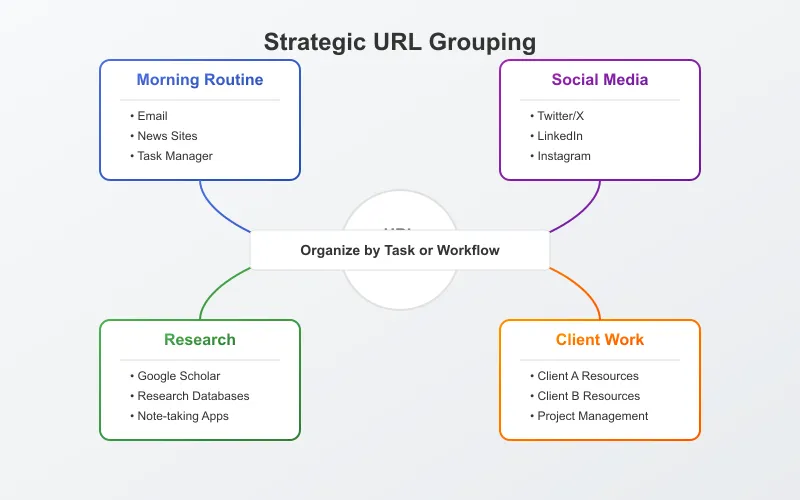
Organize URLs by Category
Create logical groupings of URLs based on tasks, projects, or workflows. For example:
- Morning routine: Email, news sites, task management tools
- Social media management: All your social platforms and analytics tools
- Research: Reference sites, databases, and note-taking apps
- Client work: Group URLs by client or project
Use Delay Settings Wisely
Opening too many tabs simultaneously can strain your system resources. Most bulk URL openers offer delay settings to stagger the opening process:
- For 5-10 URLs: 200-500ms delay is usually sufficient
- For 10-20 URLs: Consider 500-1000ms delay
- For 20+ URLs: Use 1000ms+ delay or consider opening in batches
Leverage Browser Tab Groups
Chrome's built-in tab grouping feature works well with bulk URL openers:
- Open your URL set with the bulk opener
- Select all the newly opened tabs
- Right-click and select "Add tabs to group"
- Name and color-code your group for easy identification
Consider Memory Management
Opening many tabs can consume significant RAM. To optimize performance:
- Use extensions with tab suspending capabilities
- Close unnecessary tabs before opening new batches
- Consider tab management extensions that automatically suspend inactive tabs
Creating Your Own Custom URL Lists
Most bulk URL openers allow you to create and save custom URL lists. Here's how to build effective lists:
Format Requirements
Typically, URLs should be:
- One URL per line
- Fully qualified (including http:// or https://)
- Free of extra spaces or characters
Example of a properly formatted URL list:
https://mail.google.com
https://calendar.google.com
https://drive.google.com
https://docs.google.com
https://sheets.google.com
Advanced URL List Features
Some bulk openers support advanced formatting:
- Comments: Add notes to your URL list (usually with # or // prefix)
- Grouping: Use special syntax to create groups within a list
- Parameters: Add opening parameters like incognito mode or window position
Example of an advanced URL list:
# Morning workflow
https://mail.google.com
https://calendar.google.com

// Social media
https://twitter.com
https://linkedin.com [incognito]

/* Research sites */
https://scholar.google.com
https://pubmed.ncbi.nlm.nih.gov
Security Considerations
When using bulk URL openers, keep these security considerations in mind:
Security Warning: Be cautious about which bulk URL opener extensions you install. Some may request excessive permissions or collect browsing data. Always check reviews, developer reputation, and privacy policies before installing.
Permission Requirements
Legitimate bulk URL openers typically require these permissions:
- Access to tabs and windows (to open URLs)
- Storage access (to save your URL lists)
- Bookmarks access (if it integrates with bookmarks)
Be wary of extensions requesting unnecessary permissions like:
- Access to all website data
- Ability to modify website content
- Access to browsing history
Data Privacy
Consider where your URL lists are stored:
- Local storage: Most private but not synced across devices
- Browser sync: Convenient but data passes through browser vendor's servers
- Third-party servers: Check the privacy policy to understand how your data is used
Alternatives to Chrome Extensions
If you prefer not to use browser extensions, consider these alternatives:
Bookmarklets
Bookmarklets are special bookmarks containing JavaScript code that can open multiple URLs:
- Create a new bookmark in Chrome
- Name it "Open Multiple URLs"
- In the URL field, paste a JavaScript code snippet for opening URLs
- Click the bookmark whenever you want to open your URL set
Example bookmarklet code:
javascript:(function(){
  var urls = [
    'https://mail.google.com',
    'https://calendar.google.com',
    'https://drive.google.com'
  ];
  for(var i=0; i<urls.length; i++){
    window.open(urls[i]);
  }
})();
Web-Based Services
Several websites offer bulk URL opening without requiring extensions:
Command-Line Tools
For technical users, command-line tools can open multiple URLs:
- On Windows: Use PowerShell scripts
- On macOS: Use AppleScript or shell scripts
- On Linux: Use shell scripts with xdg-open
Conclusion
Bulk URL openers are invaluable productivity tools for anyone who regularly accesses multiple websites. By choosing the right extension and implementing effective organization strategies, you can significantly streamline your workflow and save valuable time.
In 2026, with increasingly complex digital workflows, the ability to quickly access groups of related websites has become essential for professionals across industries. Whether you're managing social media accounts, conducting research, or simply starting your daily routine, a good bulk URL opener can make your online experience more efficient and organized.
Consider your specific needs when choosing from the options above, and don't forget to implement the best practices for organization and security to get the most out of these powerful tools.