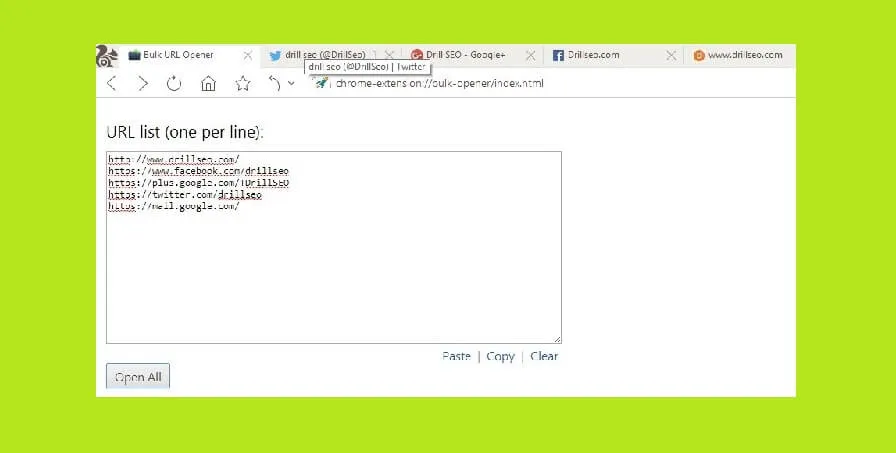
Digital marketers, SEO specialists, QA testers, and web researchers frequently need to open dozens — or even hundreds — of URLs simultaneously from spreadsheets, audit exports, or backlink reports. Manually copying and pasting each link into browser tabs is a massive drain on productivity. Utilizing dedicated bulk URL opener browser extensions and web tools allows you to launch 50+ URLs in separate tabs with a single click, complete with custom delays that prevent browser crashes and memory freezing.
In this productivity guide, we review the top bulk URL opener extensions for Google Chrome, Firefox, and Edge, explain how to configure browser popup permissions, and share developer command-line alternatives for heavy workloads.
Top 4 Browser Extensions for Bulk URL Opening
- Open Multiple URLs (Chrome Web Store): The most popular lightweight extension. Simply paste a raw text list of URLs into the textarea, choose whether to open them in new windows or tabs, and click "Open URLs".
- Bulk URL Opener by Eigm: Advanced feature set allowing you to create custom URL profiles, save frequently accessed link clusters, and specify custom second-by-second interval delays.
- Pasty: Automatically parses your clipboard text, extracts all valid URLs (ignoring surrounding text), and opens them in clean sequential tabs.
- Tab Save: Ideal for bulk downloading assets (images, PDFs) from a list of URLs directly into your downloads folder.
Configuring Chrome Popup Permissions
When opening more than 3 tabs simultaneously, Chrome's native security will trigger a popup blocker icon in your address bar:
- Look for the red cross icon in the right side of the Chrome address bar: "Pop-ups blocked".
- Click the icon and select "Always allow pop-ups and redirects from [extension/domain]".
- Click Done. Re-click the open button — all tabs will now launch seamlessly.
Setting Custom Tab Launch Delays
Opening 100 heavy websites simultaneously can instantly consume 16 GB of RAM, freezing your operating system. Top extensions include a "Delay between each tab" setting:
- Set an interval delay of 1 to 2 seconds.
- This gives the browser time to initialize network connections sequentially without triggering CPU thermal throttling.
PowerShell & Bash Scripting for Bulk URL Verification
If your goal is to test whether 500 URLs return HTTP 200 OK without opening browser windows, use this PowerShell script:
# Bulk test HTTP status codes in PowerShell
$urls = Get-Content "urls.txt"
foreach ($url in $urls) {
    try {
        $res = Invoke-WebRequest -Uri $url -Method Head -TimeoutSec 5 -ErrorAction Stop
        Write-Host "$url -> $($res.StatusCode)" -ForegroundColor Green
    } catch {
        Write-Host "$url -> FAILED" -ForegroundColor Red
    }
}