Have you ever visited a WordPress website with an impressive design and wondered, "What theme are they using?" Whether you're seeking inspiration for your own site or conducting competitive research, identifying WordPress themes used by other websites is a valuable skill. In this comprehensive guide, we'll explore multiple methods to detect WordPress themes, from simple online tools to advanced manual techniques.
Why You Might Want to Identify WordPress Themes
Before diving into the methods, let's understand why you might want to identify a WordPress theme:
- Design Inspiration: Discover themes that align with your vision for your own website
- Competitive Analysis: Research what themes are popular in your industry
- Troubleshooting: Identify theme-related issues when helping clients with their websites
- Learning: Study how professional websites are built to improve your own development skills
- Purchasing Decisions: Preview how a theme looks in real-world applications before buying
Method 1: Using Online WordPress Theme Detector Tools
The easiest way to identify a WordPress theme is by using specialized online tools. Here are some of the most reliable options in 2026:
1. WPThemeDetector
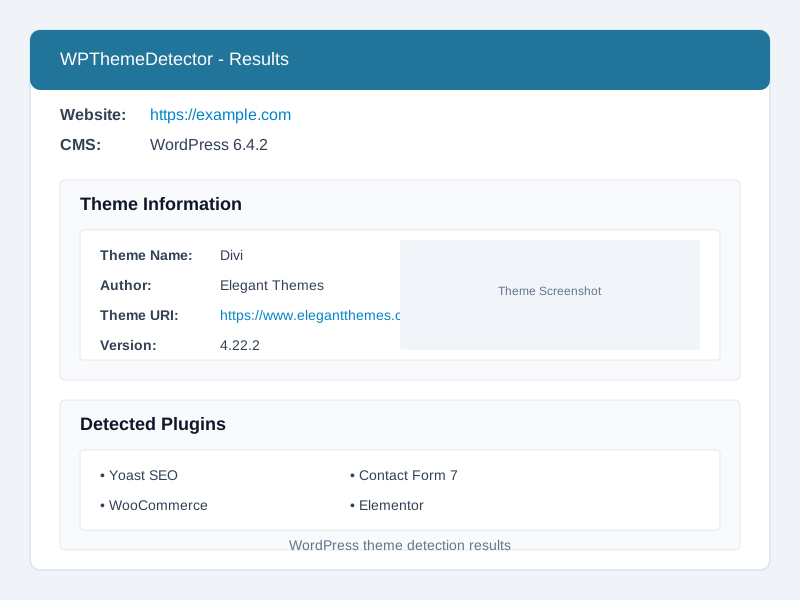
WPThemeDetector is one of the most comprehensive theme identification tools available:
- Visit WPThemeDetector.com
- Enter the URL of the WordPress site you want to analyze
- Click "Search"
- View detailed information about the theme, including:
- Theme name and author
- Theme URL
- Parent theme (if applicable)
- Plugins used on the site
2. IsItWP
IsItWP not only detects themes but also confirms if a site is using WordPress:
- Go to IsItWP Theme Detector
- Enter the website URL
- Click "Detect"
- Review the results showing theme details and hosting information
3. What WordPress Theme Is That
This tool provides a quick way to identify themes:
- Visit WhatWPThemeIsThat.com
- Enter the website URL
- Click "Detect"
- View theme information and additional site details
Pro Tip
Try multiple theme detector tools if one doesn't provide results. Some websites implement security measures that can block certain detection methods, but different tools use various techniques to identify themes.
Method 2: Inspecting the Website's Source Code
If online tools don't work, you can manually inspect the website's source code to find theme information:
Using Browser Developer Tools
- Visit the WordPress site you want to analyze
- Right-click anywhere on the page and select "View Page Source" (or press Ctrl+U in most browsers)
- Once the source code opens, press Ctrl+F to open the search function
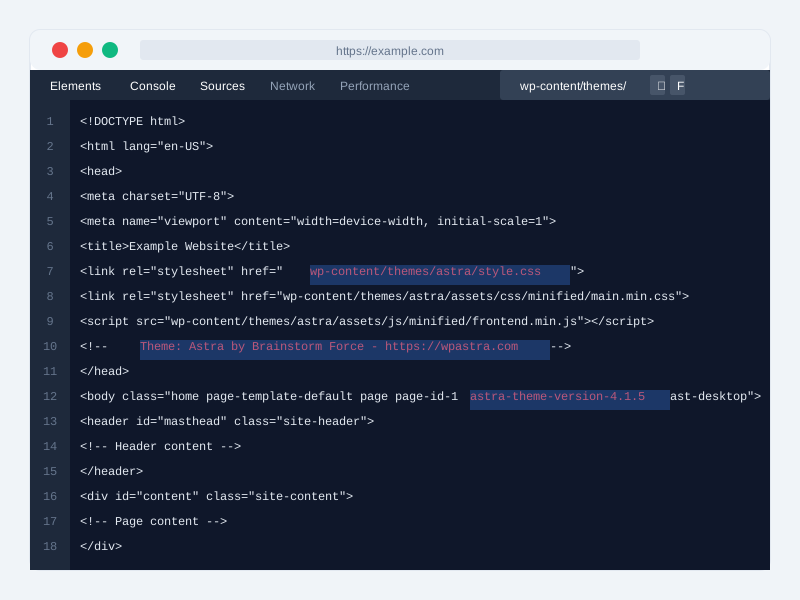
- Search for "wp-content/themes/"
- The folder name that appears after "themes/" is typically the theme name
For example, if you see a path like wp-content/themes/astra/style.css, the theme name is "Astra".
Looking for Theme Information in HTML Comments
Some WordPress themes include identifying information in HTML comments:
- In the page source, search for "Theme:" or "Template:"
- Look for comments that might contain theme information
<!-- Theme: Divi by Elegant Themes - elegantthemes.com -->Method 3: Using Browser Extensions
Browser extensions can make theme detection even easier:
1. Wappalyzer
Wappalyzer identifies technologies used on websites, including WordPress themes:
- Install Wappalyzer for your browser
- Visit the WordPress site you want to analyze
- Click the Wappalyzer icon in your browser toolbar
- Look for "CMS" and "WordPress" sections
- The theme information may be listed under "WordPress"
2. BuiltWith
BuiltWith provides detailed technology profiles for websites:
- Install the BuiltWith extension
- Visit the target website
- Click the BuiltWith icon
- Look for "Content Management System" and "WordPress" sections
- Theme information is often displayed in the results
Method 4: Checking WordPress Style.css File
Every WordPress theme has a style.css file that contains identifying information:
- Determine the theme directory by searching for "wp-content/themes/" in the source code
- Once you have the theme name, try accessing the style.css file directly by adding "/wp-content/themes/[theme-name]/style.css" to the site's domain
- The top of the style.css file typically contains a comment block with theme details:
/*
Theme Name: Astra
Theme URI: https://wpastra.com/
Author: Brainstorm Force
Author URI: https://wpastra.com/about/
Description: Astra is fast, fully customizable & beautiful WordPress theme...
Version: 3.9.4
*/
Important Note
Some websites restrict direct access to their theme files for security reasons. If you can't access the style.css file, try other methods listed in this guide.
Method 5: Checking for Theme-Specific Elements
Many popular WordPress themes have distinctive elements that can help identify them:
1. Check CSS Classes
Inspect the page elements using browser developer tools (right-click and select "Inspect" or press F12):
- Look for CSS classes that might contain theme names (e.g., "theme-divi", "avada-", "astra-")
- Check the body tag for theme-specific classes
2. Look for Theme-Specific JavaScript
Check the source code for JavaScript files that might reveal the theme:
- Search for ".js" files in the source code
- Look for files with theme names in their paths
Method 6: Using WordPress Admin URL
If you have admin access to the WordPress site, finding the theme is straightforward:
- Log in to the WordPress admin dashboard
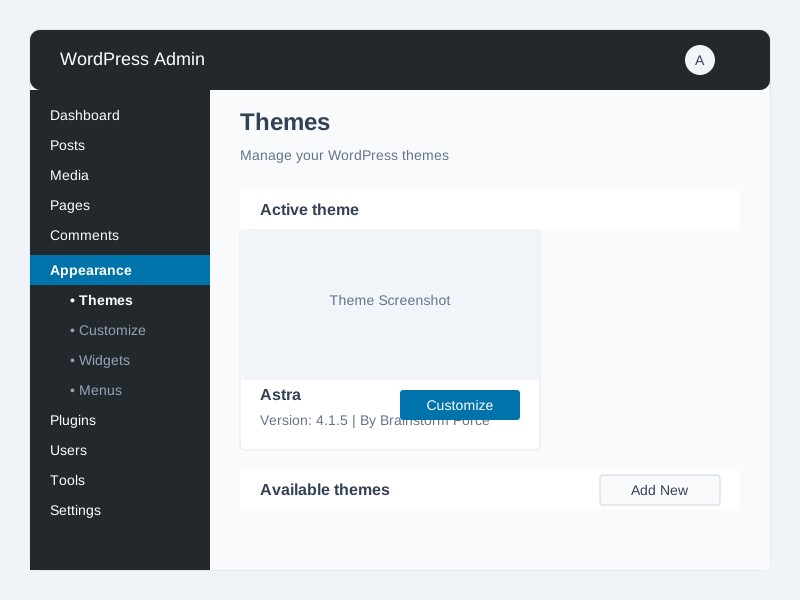
- Go to Appearance → Themes
- The active theme will be displayed with its name and details